Let me tell you something about the annual iOS update cycle. Every September, Apple takes the stage, shows us a flashy new interface, and we all nod along like it's the second coming of sliced bread. But here's the thing—the real magic is almost always buried in the settings menu, hiding in plain sight.
I've been a beta tester for years, and I've found that the features Apple actually demos are rarely the ones that change my daily workflow. The stuff that sticks? It's the quiet additions. The ones that don't get a slide in the keynote but end up saving me ten minutes a day.
So, let's skip the obvious stuff—the new Control Center, the redesigned Photos app, the Apple Intelligence hype (whenever it actually ships). We're diving into the real hidden gems of iOS 18. These are the features you didn't know you needed, but trust me, once you start using them, you won't remember how you lived without them.
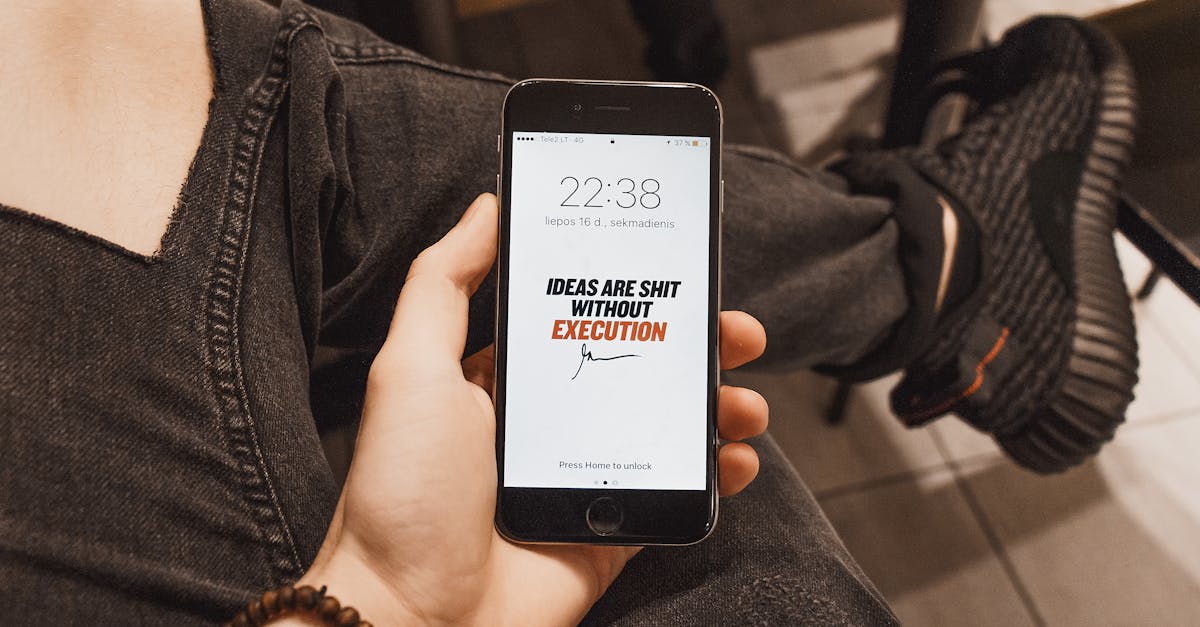
The "Hold to Convert" Trick That Kills the Calculator App
I’m a math idiot. There, I said it. So when I need to calculate a tip or figure out a discount, I usually fumble for the Calculator app. But iOS 18 introduced a feature that makes the dedicated app almost obsolete.
It’s called Math Notes, and while Apple did mention it, they didn't tell you how it integrates with the rest of the system. Here’s the secret: You don't need to open the Calculator at all. Just type your equation into the Search bar (swipe down on the home screen) or, better yet, type it into the Messages app.
Wait, what?
Yes. If you type "120*0.18" into a text field and hit the equals sign (or just a space), iOS 18 instantly recognizes it as a math expression. With the new keyboard, you get a quick "=" button right above the number pad. Tap it, and the result pops up inline. No switching apps. No mental math. It just... happens.
Let's be honest, this is the kind of feature that sounds minor, but it’s a game-changer for anyone who texts their spouse about splitting groceries or needs to quickly convert currency while chatting. It’s fluid, it’s contextual, and it’s the reason I haven't opened the Calculator app in three weeks.
The Hidden "Shazam" History in the Action Button
I upgraded to a Pro model specifically for the Action Button last year. I set it to open the camera. Boring, right? I know. But iOS 18 adds a new toggle that completely changes the game: Control.
Here’s what most people miss—you can assign the Action Button to open a specific Control Center toggle. But the one you actually want is the "Recognize Music" control. This is literally Shazam, baked into the side of your phone.
I've found that having a dedicated physical button for music recognition is infinitely better than the Control Center widget. You see a song playing in a coffee shop? You don't have to fumble for your phone, unlock it, and swipe down. You just press and hold the side button. It's instant.
But here's the kicker Apple didn't advertise: all your recognitions are saved in a dedicated list in the Settings app (under Action Button → Recognize Music). It builds a history of every song you've discovered. It’s like a sonic diary of your life. I’ve rediscovered tracks I heard at a bar three weeks ago just by scrolling that list. It’s a small thing, but it feels like a superpower.
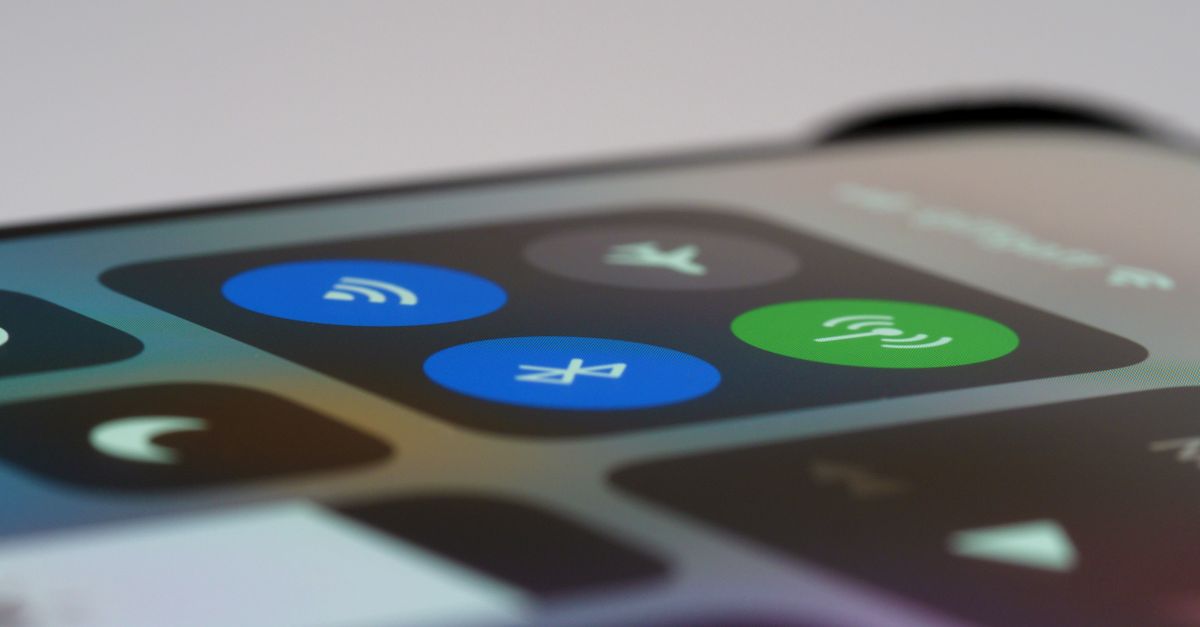
The "Hidden" App Locking That Actually Works
For years, we begged Apple for a way to lock individual apps. Android had it. We were stuck with Screen Time workarounds that were clunky and annoying. iOS 18 finally delivered, but they buried the lede.
Everyone knows you can long-press an app and hit "Require Face ID." That was the headline. But the hidden part? You can also hide the app entirely.
Here’s how it works: Long-press the app, tap "Require Face ID," and then choose "Hide & Require Face ID." The app disappears from the home screen. It’s moved to a locked "Hidden" folder in the App Library.
Now, why is this better than just locking it? Because of the notification behavior. When you hide an app, notifications are suppressed entirely. They don't show up on the lock screen, they don't show previews, and they don't even show the app name. It's a digital blackout.
I use this for my banking app and my journaling app. It’s not about secrecy; it’s about privacy. If someone grabs your phone to look at photos, they can't accidentally see a bank balance pop up. It’s a peace of mind thing, and it's utterly seamless. Most people install third-party "vault" apps for this, but you don't need to anymore.
The "Tap to Present" SharePlay Feature
Ah, SharePlay. The feature Apple has been trying to make happen since iOS 15. Usually, it’s a bit of a mess. But in iOS 18, they added a feature called "Tap to Present" that is so subtle, I almost missed it.
Here’s the scenario: You're on a FaceTime call with your parents, trying to help them fix their Wi-Fi router. You're screaming into the void, trying to explain what the blinking orange light means. Frustrating, right?
Now, you can just share your screen. But more importantly, **the other person can share their screen back to you, and you can see it full-screen.** The hidden gem here is that on their end, they see a little "Tap to Present" button. They don't need to navigate any menus. It's one tap.
More than that, if you're watching a movie or listening to music together, the new SharePlay lets you tap the screen controls to pause or play for both of you. It turns a passive viewing session into a synchronized experience. It’s not just for content, though. I use it to help my friends navigate complex settings on their phones without having to explain it. It turns a phone call into a visual collaboration. It’s the closest thing to being there, and it took a hidden setting for me to realize it existed.
The "Offline" Maps Lifesaver (and the EV Route Planner)
Look, everyone knows you can download maps for offline use. That's old news. But iOS 18 quietly overhauled the Maps app in a way that specifically caters to two types of people: hikers and EV drivers.
First, the hiking part. Apple Maps now includes hundreds of national park trails with full topographical maps. You can download these trail maps, and they include contour lines, elevation data, and waypoints. This is huge. It’s a free alternative to AllTrails, and it works entirely offline.
Second, and this is the hidden gem for me: the EV route planner is actually smart now. If you own an electric vehicle, iOS 18 Maps will plan your route around charging stops automatically, factoring in your current battery level and the elevation changes.
But here’s the part Apple didn't say out loud: it integrates with your car's native app if you have a compatible model. I plugged in a route from LA to Vegas, and it not only mapped out the Supercharger stops but also sent the route directly to the car's infotainment screen wirelessly. No cable. No fumbling with CarPlay. It just did it.
It’s these quality-of-life improvements that make iOS 18 feel less like a "new" operating system and more like an upgrade to your daily rhythm.

The Bottom Line: It's the Small Stuff
We get so caught up in the AI hype and the big redesigns that we forget the most important part of a phone is how it feels to use. iOS 18 isn't about reinventing the wheel; it's about making the wheel slightly less annoying to spin.
These five features—the inline math, the action button music recognition, the hidden app notifications, the tap-to-present screen sharing, and the smart offline maps—are the difference between fighting your phone and flowing with it.
So, go ahead. Dig into your settings. Mess around with the Action Button. Hide a few apps. I promise you, the magic is there. You just have to look past the marketing to find it.
Are there any other hidden tricks you've found? I'm always hunting for the next one. Drop your discoveries in the comments or hit me up on the socials—I'm genuinely curious to see what I missed.
